> ## Documentation Index
> Fetch the complete documentation index at: https://stagehand-codex-replicate-pr-2348.mintlify.site/llms.txt
> Use this file to discover all available pages before exploring further.
# Agent
> Automate complex workflows with AI powered browser agents
## What is `agent()?`
```typescript theme={null}
agent.execute("apply for a job at browserbase")
```
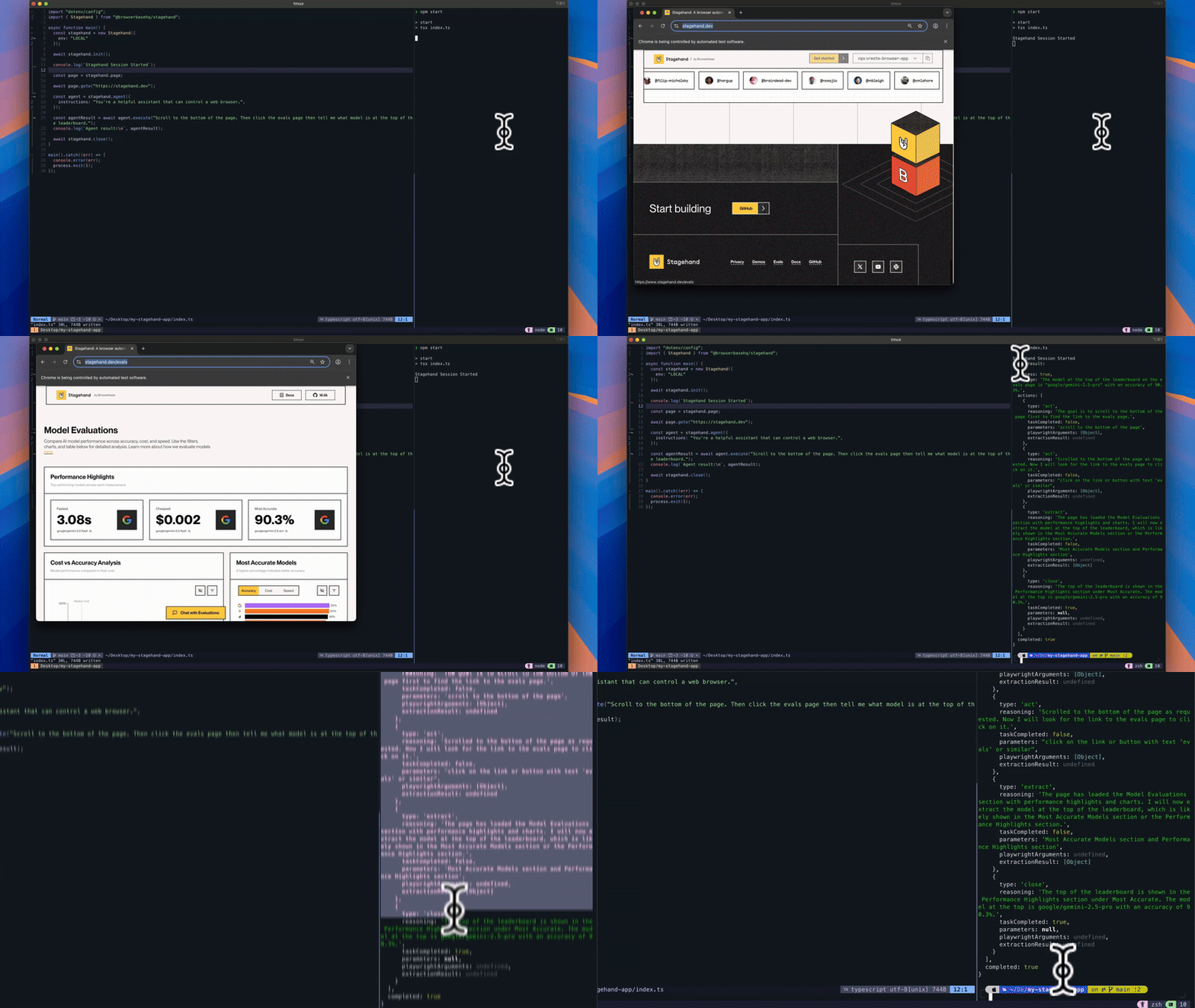
`agent` turns high level tasks into **fully autonomous** browser workflows. You can customize the agent by specifying the LLM provider and model, setting custom instructions for behavior, and configuring max steps.
 ## Why use `agent()`?
Execute complex sequences automatically.
Sees and understands web interfaces like humans do using computer vision.
## Using `agent()`
There are two ways to create agents in Stagehand:
### Computer Use Agents
Use computer use agents with specialized models from OpenAI or Anthropic:
```typescript TypeScript theme={null}
const agent = stagehand.agent({
provider: "anthropic",
model: "claude-sonnet-4-20250514",
instructions: "You are a helpful assistant that can use a web browser.",
options: {
apiKey: process.env.ANTHROPIC_API_KEY,
},
});
await agent.execute("apply for a job at Browserbase")
```
```python Python theme={null}
agent = stagehand.agent(
model="claude-sonnet-4-20250514",
instructions="You are a helpful assistant that can use a web browser.",
options={
"api_key": os.getenv("ANTHROPIC_API_KEY"),
},
)
await agent.execute("apply for a job at Browserbase")
```
View or run the example template [here](https://www.browserbase.com/templates/gemini-cua)
### Use Stagehand Agent with Any LLM
Use the agent without specifying a provider to utilize any model or LLM provider:
Non CUA agents are currently only supported in TypeScript
```typescript TypeScript theme={null}
const agent = stagehand.agent();
await agent.execute("apply for a job at Browserbase")
```
## MCP Integrations
Agents can be enhanced with external tools and services through MCP (Model Context Protocol) integrations. This allows your agent to access external APIs and data sources beyond just browser interactions.
```typescript TypeScript (Pass URL) theme={null}
const agent = stagehand.agent({
provider: "openai",
model: "computer-use-preview",
integrations: [
`https://mcp.exa.ai/mcp?exaApiKey=${process.env.EXA_API_KEY}`,
],
instructions: `You have access to web search through Exa. Use it to find current information before browsing.`,
options: {
apiKey: process.env.OPENAI_API_KEY,
},
});
await agent.execute("Search for the best headphones of 2025 and go through checkout for the top recommendation");
```
```typescript TypeScript (Create Connection) theme={null}
import { connectToMCPServer } from "@browserbasehq/stagehand";
const supabaseClient = await connectToMCPServer(
`https://server.smithery.ai/@supabase-community/supabase-mcp/mcp?api_key=${process.env.SMITHERY_API_KEY}`
);
const agent = stagehand.agent({
provider: "openai",
model: "computer-use-preview",
integrations: [supabaseClient],
instructions: `You can interact with Supabase databases. Use these tools to store and retrieve data.`,
options: {
apiKey: process.env.OPENAI_API_KEY,
},
});
await agent.execute("Search for restaurants and save the first result to the database");
```
MCP integrations enable agents to be more powerful by combining browser automation with external APIs, databases, and services. The agent can intelligently decide when to use browser actions versus external tools.
Stagehand uses a 1288x711 viewport by default (the optimal size for Computer Use Agents). Other viewport sizes may reduce performance. If you need to modify the viewport, you can edit in the [Browser Configuration](/v2/configuration/browser).
## Available Models
Use specialized computer use models (e.g., `computer-use-preview` from OpenAI or `claude-sonnet-4-20250514` from Anthropic)
Check out the guide on how to use different models with Stagehand.
## Agent Execution Configuration
Control the maximum number of steps the agent can take to complete the task using the `maxSteps` parameter.
```typescript TypeScript theme={null}
// Set maxSteps to control how many actions the agent can take
await agent.execute({
instruction: "Sign me up for a library card",
maxSteps: 15 // Agent will stop after 15 steps if task isn't complete
});
```
```python Python theme={null}
# Set max_steps to control how many actions the agent can take
result = await agent.execute({
"instruction": "Sign me up for a library card",
"max_steps": 15 # Agent will stop after 15 steps if task isn't complete
})
```
For complex tasks, increase the `maxSteps` limit and check task success.
```typescript TypeScript theme={null}
// Complex multi-step task requiring more actions
const result = await agent.execute({
instruction: "Find and apply for software engineering jobs, filtering by remote work and saving 3 applications",
maxSteps: 30, // Higher limit for complex workflows
});
// Check if the task completed successfully
if (result.success === true) {
console.log("Task completed successfully!");
} else {
console.log("Task failed or was incomplete");
}
```
```python Python theme={null}
# Complex multi-step task requiring more actions
result = await agent.execute({
"instruction": "Find and apply for software engineering jobs, filtering by remote work and saving 3 applications",
"max_steps": 30 # Higher limit for complex workflows
})
# Check if the task completed successfully
if result.success == True:
print("Task completed successfully!")
else:
print("Task failed or was incomplete")
```
## Best Practices
Following these best practices will improve your agent's success rate, reduce execution time, and minimize unexpected errors during task completion.
### Start on the Right Page
Navigate to your target page before executing tasks:
```typescript TypeScript theme={null}
await page.goto('https://github.com/browserbase/stagehand');
await agent.execute('Get me the latest PR on the stagehand repo');
```
```python Python theme={null}
await page.goto("https://github.com/browserbase/stagehand")
result = await agent.execute("Get me the latest PR on the stagehand repo")
```
```typescript TypeScript theme={null}
await agent.execute('Go to GitHub and find the latest PR on browserbase/stagehand');
```
```python Python theme={null}
result = await agent.execute("Go to GitHub and find the latest PR on browserbase/stagehand")
```
### Be Specific
Provide detailed instructions for better results:
```typescript TypeScript theme={null}
await agent.execute("Find Italian restaurants in Brooklyn that are open after 10pm and have outdoor seating");
```
```python Python theme={null}
result = await agent.execute("Find Italian restaurants in Brooklyn that are open after 10pm and have outdoor seating")
```
```typescript TypeScript theme={null}
await agent.execute("Find a restaurant");
```
```python Python theme={null}
result = await agent.execute("Find a restaurant")
```
## Troubleshooting
**Problem**: Agent stops before finishing the requested task
**Solutions**:
* Check if the agent is hitting the maxSteps limit (default is 20)
* Increase maxSteps for complex tasks: `maxSteps: 30` or higher
* Break very complex tasks into smaller sequential executions
```typescript theme={null}
// Increase maxSteps for complex tasks
await agent.execute({
instruction: "Complete the multi-page registration form with all required information",
maxSteps: 40 // Increased limit for complex task
});
// Or break into smaller tasks with success checking
const firstResult = await agent.execute({
instruction: "Fill out page 1 of the registration form",
maxSteps: 15
});
// Only proceed if the first task was successful
if (firstResult.success === true) {
await agent.execute({
instruction: "Navigate to page 2 and complete remaining fields",
maxSteps: 15
});
} else {
console.log("First task failed, stopping execution");
}
```
**Problem**: Agent clicks on wrong elements or fails to interact with the correct UI components
**Solutions**:
* Ensure proper viewport size: Stagehand uses `1288x711` by default (optimal for Computer Use models)
* Avoid changing viewport dimensions as other sizes may reduce performance
## Next steps
Execute actions efficiently using observe results
Extract structured data from observed elements
## Why use `agent()`?
Execute complex sequences automatically.
Sees and understands web interfaces like humans do using computer vision.
## Using `agent()`
There are two ways to create agents in Stagehand:
### Computer Use Agents
Use computer use agents with specialized models from OpenAI or Anthropic:
```typescript TypeScript theme={null}
const agent = stagehand.agent({
provider: "anthropic",
model: "claude-sonnet-4-20250514",
instructions: "You are a helpful assistant that can use a web browser.",
options: {
apiKey: process.env.ANTHROPIC_API_KEY,
},
});
await agent.execute("apply for a job at Browserbase")
```
```python Python theme={null}
agent = stagehand.agent(
model="claude-sonnet-4-20250514",
instructions="You are a helpful assistant that can use a web browser.",
options={
"api_key": os.getenv("ANTHROPIC_API_KEY"),
},
)
await agent.execute("apply for a job at Browserbase")
```
View or run the example template [here](https://www.browserbase.com/templates/gemini-cua)
### Use Stagehand Agent with Any LLM
Use the agent without specifying a provider to utilize any model or LLM provider:
Non CUA agents are currently only supported in TypeScript
```typescript TypeScript theme={null}
const agent = stagehand.agent();
await agent.execute("apply for a job at Browserbase")
```
## MCP Integrations
Agents can be enhanced with external tools and services through MCP (Model Context Protocol) integrations. This allows your agent to access external APIs and data sources beyond just browser interactions.
```typescript TypeScript (Pass URL) theme={null}
const agent = stagehand.agent({
provider: "openai",
model: "computer-use-preview",
integrations: [
`https://mcp.exa.ai/mcp?exaApiKey=${process.env.EXA_API_KEY}`,
],
instructions: `You have access to web search through Exa. Use it to find current information before browsing.`,
options: {
apiKey: process.env.OPENAI_API_KEY,
},
});
await agent.execute("Search for the best headphones of 2025 and go through checkout for the top recommendation");
```
```typescript TypeScript (Create Connection) theme={null}
import { connectToMCPServer } from "@browserbasehq/stagehand";
const supabaseClient = await connectToMCPServer(
`https://server.smithery.ai/@supabase-community/supabase-mcp/mcp?api_key=${process.env.SMITHERY_API_KEY}`
);
const agent = stagehand.agent({
provider: "openai",
model: "computer-use-preview",
integrations: [supabaseClient],
instructions: `You can interact with Supabase databases. Use these tools to store and retrieve data.`,
options: {
apiKey: process.env.OPENAI_API_KEY,
},
});
await agent.execute("Search for restaurants and save the first result to the database");
```
MCP integrations enable agents to be more powerful by combining browser automation with external APIs, databases, and services. The agent can intelligently decide when to use browser actions versus external tools.
Stagehand uses a 1288x711 viewport by default (the optimal size for Computer Use Agents). Other viewport sizes may reduce performance. If you need to modify the viewport, you can edit in the [Browser Configuration](/v2/configuration/browser).
## Available Models
Use specialized computer use models (e.g., `computer-use-preview` from OpenAI or `claude-sonnet-4-20250514` from Anthropic)
Check out the guide on how to use different models with Stagehand.
## Agent Execution Configuration
Control the maximum number of steps the agent can take to complete the task using the `maxSteps` parameter.
```typescript TypeScript theme={null}
// Set maxSteps to control how many actions the agent can take
await agent.execute({
instruction: "Sign me up for a library card",
maxSteps: 15 // Agent will stop after 15 steps if task isn't complete
});
```
```python Python theme={null}
# Set max_steps to control how many actions the agent can take
result = await agent.execute({
"instruction": "Sign me up for a library card",
"max_steps": 15 # Agent will stop after 15 steps if task isn't complete
})
```
For complex tasks, increase the `maxSteps` limit and check task success.
```typescript TypeScript theme={null}
// Complex multi-step task requiring more actions
const result = await agent.execute({
instruction: "Find and apply for software engineering jobs, filtering by remote work and saving 3 applications",
maxSteps: 30, // Higher limit for complex workflows
});
// Check if the task completed successfully
if (result.success === true) {
console.log("Task completed successfully!");
} else {
console.log("Task failed or was incomplete");
}
```
```python Python theme={null}
# Complex multi-step task requiring more actions
result = await agent.execute({
"instruction": "Find and apply for software engineering jobs, filtering by remote work and saving 3 applications",
"max_steps": 30 # Higher limit for complex workflows
})
# Check if the task completed successfully
if result.success == True:
print("Task completed successfully!")
else:
print("Task failed or was incomplete")
```
## Best Practices
Following these best practices will improve your agent's success rate, reduce execution time, and minimize unexpected errors during task completion.
### Start on the Right Page
Navigate to your target page before executing tasks:
```typescript TypeScript theme={null}
await page.goto('https://github.com/browserbase/stagehand');
await agent.execute('Get me the latest PR on the stagehand repo');
```
```python Python theme={null}
await page.goto("https://github.com/browserbase/stagehand")
result = await agent.execute("Get me the latest PR on the stagehand repo")
```
```typescript TypeScript theme={null}
await agent.execute('Go to GitHub and find the latest PR on browserbase/stagehand');
```
```python Python theme={null}
result = await agent.execute("Go to GitHub and find the latest PR on browserbase/stagehand")
```
### Be Specific
Provide detailed instructions for better results:
```typescript TypeScript theme={null}
await agent.execute("Find Italian restaurants in Brooklyn that are open after 10pm and have outdoor seating");
```
```python Python theme={null}
result = await agent.execute("Find Italian restaurants in Brooklyn that are open after 10pm and have outdoor seating")
```
```typescript TypeScript theme={null}
await agent.execute("Find a restaurant");
```
```python Python theme={null}
result = await agent.execute("Find a restaurant")
```
## Troubleshooting
**Problem**: Agent stops before finishing the requested task
**Solutions**:
* Check if the agent is hitting the maxSteps limit (default is 20)
* Increase maxSteps for complex tasks: `maxSteps: 30` or higher
* Break very complex tasks into smaller sequential executions
```typescript theme={null}
// Increase maxSteps for complex tasks
await agent.execute({
instruction: "Complete the multi-page registration form with all required information",
maxSteps: 40 // Increased limit for complex task
});
// Or break into smaller tasks with success checking
const firstResult = await agent.execute({
instruction: "Fill out page 1 of the registration form",
maxSteps: 15
});
// Only proceed if the first task was successful
if (firstResult.success === true) {
await agent.execute({
instruction: "Navigate to page 2 and complete remaining fields",
maxSteps: 15
});
} else {
console.log("First task failed, stopping execution");
}
```
**Problem**: Agent clicks on wrong elements or fails to interact with the correct UI components
**Solutions**:
* Ensure proper viewport size: Stagehand uses `1288x711` by default (optimal for Computer Use models)
* Avoid changing viewport dimensions as other sizes may reduce performance
## Next steps
Execute actions efficiently using observe results
Extract structured data from observed elements